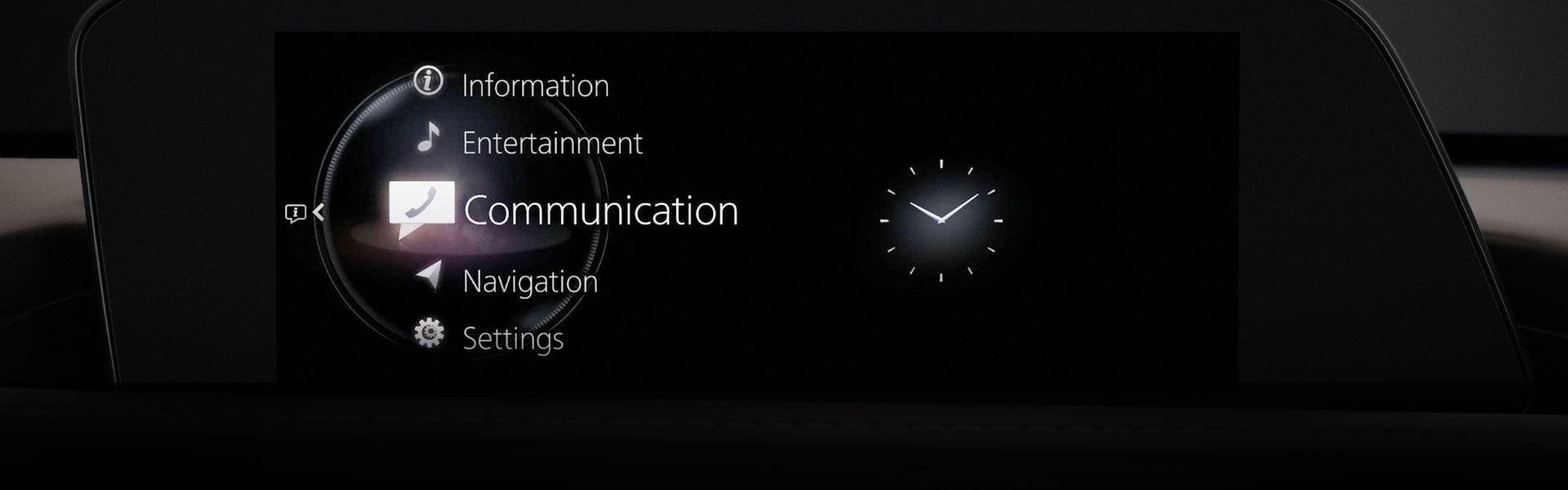
A Human-Centric Approach
The Mazda Connect infotainment system represents the pinnacle of intuitive, human-centric design. As a product of extensive research and development, Mazda Connect was designed with the driving experience at the forefront. Every control, feature, graphic and interaction was carefully designed to provide the driver the information that is needed, while minimizing distraction to help keep the driver’s focus on the road ahead.

Commander Control
Rather than a touchscreen display, Mazda designed the Commander control interface to enable simple, intuitive control of all Mazda Connect features. While touchscreen displays require the driver to look away from the road and take a hand off the steering wheel to operate features, the Commander control allows the driver to stay focused on the road ahead while operating infotainment features.

Ergonomic Placement
The Commander control interface is placed precisely within arm’s reach of the driver. This allows the driver to comfortably rest their arm and maintain an ideal driving posture, while still having complete control over the Mazda Connect system via Commander control.

Line Of Sight
The Mazda Connect display is positioned high on the dashboard, so the driver need only to slightly shift their eye to view pertinent information.

Clean Design
Every aspect of Mazda Connect was designed to be easy to use. This includes the use of clean text, a consistent and cohesive font family, consistent character spacing, pleasant illumination and a distinct lack of glaring icons or other disruptors.

Focal Point
KEY FEATURES OVERVIEW
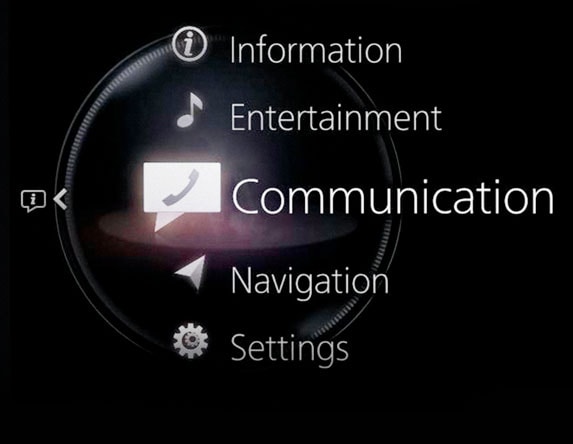
MAZDA CONNECT HOME MENU
- Communications – Phone calls and text messages
- Entertainment – All audio sources
- Information – Fuel efficiency data, vehicle maintenance reminders and more
- Navigation – Turn-by-turn directions with 3D map, in-vehicle displays, split-screen capability and more (when equipped; dealer-installed option)
- Settings – Adjust vehicle settings and set preferences
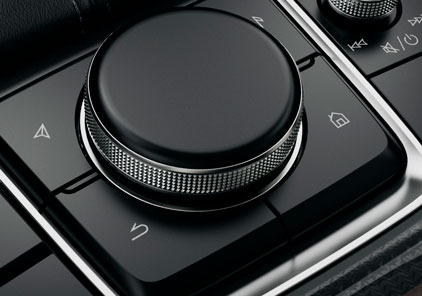
COMMANDER CONTROL functions as the main controller for the Mazda Connect system, providing access to all Mazda Connect features right at the driver’s fingertips.
- Rotate, press and slide the Commander Control to navigate through menus and select features
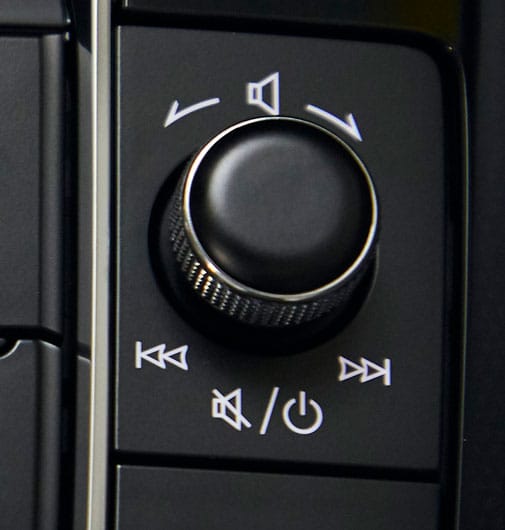
VOLUME KNOB provides ergonomic control for volume, pausing/playing, seeking radio channels and skipping audio tracks.
- Rotate to adjust volume +/-
- Press to mute/pause audio
- Slide left/right to skip audio tracks, seek radio stations and fast-forward/rewind
- Press and hold to turn the system off. Press and hold to turn the system back on
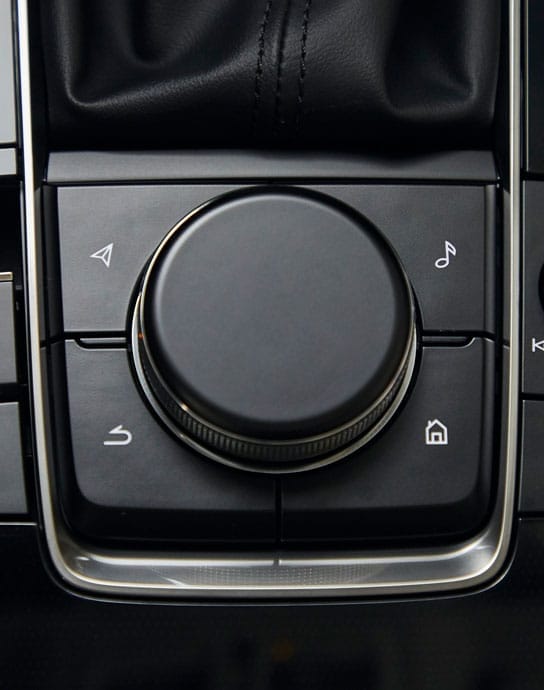
COMMANDER CONTROL SHORTCUT BUTTONS are positioned at the driver’s fingertips and provide quick access to commonly used Mazda Connect features.
- Back button – Returns to previous screen
- Home button – Press to jump back to the home screen. Or, while on the home screen, press to toggle between the home screen and digital clock; can also press and HOLD to activate Apple CarPlay™ or Android Auto™ (when a compatible device is connected)
- Entertainment button – Provides quick access to the Entertainment menu or source list (or comparable Apple CarPlay/Android Auto media app, when a compatible device is connected)
- Map button – Opens the navigation screen (when equipped); opens Apple CarPlay or Android Auto navigation apps or route guidance (when a compatible device is connected)
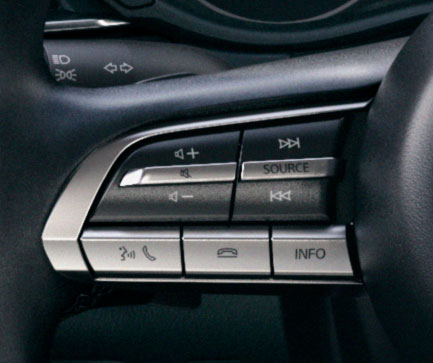
VOICE COMMANDS allow the driver to place and receive calls, send text messages and use Siri® or Google Assistant™ (when a compatible device is connected) while keeping their hands on the wheel and eyes on the road.
- Talk button – Press the Talk button on the steering wheel to activate voice commands
- Barge-in Feature – Allows you to “barge in” and voice a command while the system is providing voice guidance
- Siri/Google Assistant – Opens the navigation screen (when equipped); opens Apple Maps or Google Maps (when a compatible device is connected)
Apple CarPlay and Android Auto provide seamless integration between a smartphone and the vehicle’s Mazda Connect system (when a compatible device is connected), providing convenient access to music, maps, contacts and a variety of other smartphone apps. Simply connect a compatible iPhone or Android device via any USB port to get started.
For more information, refer to the Apple CarPlay and Android Auto User Guides.
Focal Point
CONNECTED SERVICES
STAY CONNECTED
Mazda Connected Services promotes a strong bond between the customer, the vehicle, the dealer and the Mazda brand by providing features that elevate Convenience, Peace of Mind and Safety.
CONVENIENCE
|
REMOTE FEATURES allow you to remotely start/stop the engine1, lock/unlock the vehicle and turn the lights on/off from anywhere you have cellular data service – a much greater operational proximity when compared to traditional key-fob activated remote-start systems. PREHEAT OR PRECOOL the interior remotely to make the vehicle more comfortable on especially hot or cold days. |
|
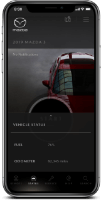
VEHICLE STATUS provides important vehicle information for fuel level, odometer, tire pressure2 and lights, door, hood and trunk/liftgate status. |
|
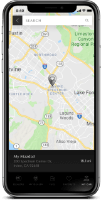
VEHICLE FINDER makes it easy to find the vehicle when parked; especially helpful when the vehicle is parked in a crowded parking lot. |
|
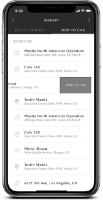
SEND-TO-CAR POI Search allows you to search for nearby Points of Interest (POI) and transmit that destination to the vehicle’s navigation system (when equipped), saving you time by helping you plan ahead. |

|
IN-CAR WIFI3 provides fast internet connectivity to all passengers in the vehicle. Mazda3 and CX-30: Free trial through Verizon good for 2GB or 6 months, whichever comes first. CX-5 and CX-9: Free trial through AT&T good for 2GB or 3 months, whichever comes first. |
PEACE OF MIND
|
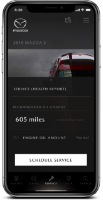
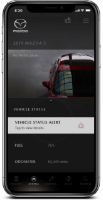
VEHICLE HEALTH REPORT allows the driver to view their vehicle's oil life, upcoming service milestones and more. Owners can also schedule a service appointment directly from the app. |
|
NOTIFICATIONS for maintenance or warning messages are displayed right on the home screen of the app. Notifications can also be viewed on an iPhone or Android device’s native notification center. |
SAFETY
|
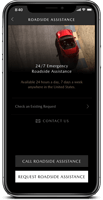
HELP allows the driver to contact Mazda Roadside Assistance quickly and conveniently (when a device is paired via Bluetooth®). |
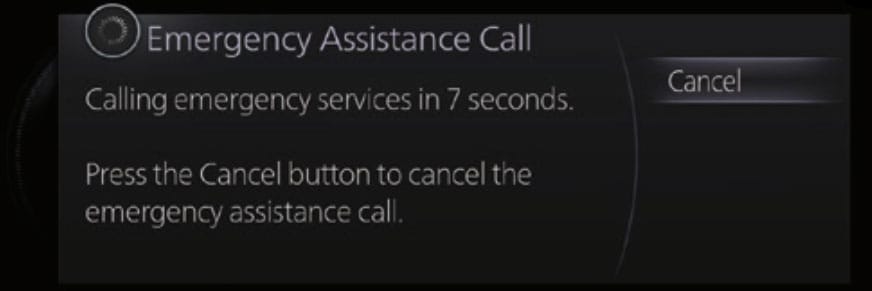
AUTOMATIC 911 DIALING can automatically call 911 if a moderate or severe collision is detected (when a device is paired via Bluetooth).
Disclaimers
Focal Point
SELLING CONNECTED SERVICES ENROLLMENT
ENROLLING YOUR CUSTOMER
Getting your customer excited about enrolling and using Connected Services through the MyMazda App is as important as demonstrating its key features, functions and benefits. See below for several presentation tips and enrollment best practices.
DURING A SALES PRESENTATION
- DISCUSS – Cover the benefits of Mazda Connected Services and the MyMazda App during the sales presentation. Touch on benefits that connect with a specific customer’s wants, needs and lifestyle
Word Track Example: “If you’ve had remote start before, you know that it quickly becomes a must-have feature. But key-fob activated remote start systems have their limitations – for example, you must be within a certain distance for it to work. With the MyMazda App, you can remotely start your vehicle from almost anywhere, as long as you have a cellular data connection. On top of that, MyMazda’s remote start feature allows you to preheat or precool the vehicle’s interior before you get in, which helps keep you more comfortable on especially cold or hot days.”
- DEMONSTRATE – Show the customer the MyMazda App. Demonstrate how intuitive the app is and how to use the key features you discussed during the sales presentation or test drive
Tip: Have the MyMazda App pre-installed on your personal device, so you can quickly show customers some of the features and benefits of the app (without the customer having to download the app on the spot).
DURING DELIVERY

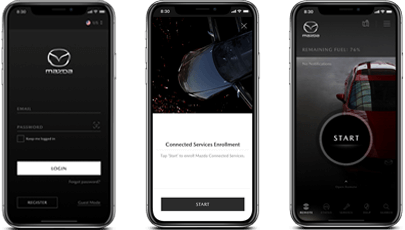
DOWNLOAD
Walk your customer through the MyMazda App download process.

LOG IN
help your customer log into the app and walk them through how to set up their account.

ENROLL VEHICLE
Show the customer how to link their new vehicle with the MyMazda App and enroll in Connected Services.

FEATURE WALKTHROUGH
Walk through the MyMazda App features (or, at a minimum, walk through the features that are most important to your customer).